
Apple’s First Touchscreen MacBook Is Here. But Do You Actually Need It?
Touchscreen Mac, Meet macOS
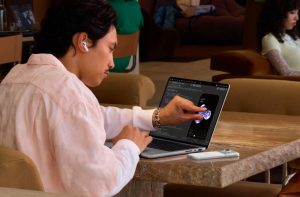
The basic gestures will feel familiar to anyone who owns an iPhone or iPad. You can swipe, scroll, pinch, zoom, rotate objects and drag elements across the display. Apple has also adapted its own interface for touch, with controls that respond to finger input and support for gestures such as double-tapping a window to expand it.
The important detail is that touch remains an additional input method, not a replacement for the trackpad. That makes sense: macOS is still a desktop operating system, with menus, windows, small controls and applications designed around a pointer.
For creative work, however, the possibilities are more interesting. Apple highlights drawing directly on the display, playing software instruments and manipulating objects. Third-party applications including Adobe Lightroom, Canva, Notion and Microsoft Office are also expected to support touch interactions.
There are still practical questions. Does dragging a clip along a video timeline feel genuinely useful, or is the trackpad more precise? Can you comfortably adjust Lightroom sliders without constantly switching between touch and the keyboard? And what about the familiar red, yellow and green window buttons? Apple has made interface adjustments for touch, but small desktop controls may still feel awkward compared with a trackpad.
These are the kinds of everyday interactions that will determine whether touch becomes a natural part of using a MacBook or remains something you demonstrate to friends once and then forget about.